Portrait
3:4A vertical format for portraits, posters, and mobile-first visual stories.
jevailab image workspace
This is the working image tool. Choose a published template or free creation, write the visual direction, select a supported ratio, and review the server quote before you submit.
The workspace keeps the full creative flow on this page. The homepage introduces the product; this page is where you prepare and submit an image request.
AI画像ワークスペース
テンプレートを選び、説明を加えて画像を作成します。
A blue-sky editorial portrait with a soft summer poster finish.
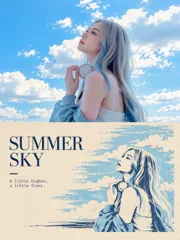
選択中のテンプレート:Summer Sky Editorial Portrait
このビジュアルスタイルとテキスト説明を組み合わせます。
0 / 1000
基本設定
変更後はサーバーが価格を再計算します。
画像クレジット消費
01 — 05
The workspace keeps the full creative flow on this page. The homepage introduces the product; this page is where you prepare and submit an image request.
Browse the available styles or choose Free creation. A template supplies a starting visual direction, while your own description adds the subject, setting, light, color, and mood. Template covers are examples of the published style and are not public user uploads.
Use a short, specific prompt. State the main subject and action first, then add the environment, time of day, lighting, palette, camera feeling, and composition. Avoid contradictory instructions. The field accepts up to 1,000 characters, so focus on details that materially change the image.
Pick the shape that fits the intended placement. The active ratio is visible before submission. Changing the ratio or other generation settings causes the workspace to request a fresh server quote, so the displayed total always belongs to the current draft.
Signed-in users see a server-calculated quote for the current draft. The quote identifies the current credit amount. The amount shown at submission is the source of truth; the browser does not decide the charge. If a generation fails, the published billing rules and the account record determine whether a hold is released.
After confirming that you have the right to use the submitted text, start the generation. Progress and the final preview appear in the workspace. A completed image can be opened or downloaded from the preview. Private results are shown only after the applicable content checks complete.
The workspace exposes five primary output choices. The ratio changes composition and framing, not the visual subject you describe.
A vertical format for portraits, posters, and mobile-first visual stories.
A tall frame for full-screen stories, cover art, and vertical placements.
A balanced square for profile visuals, product studies, and grid layouts.
A familiar landscape frame for scenes, interiors, and editorial imagery.
A wide frame for banners, presentation covers, and cinematic scenes.
Credits are the unit used for image generation. The server returns the authoritative quote for each current draft.
The workspace currently supports 1K standard mode. A 1K image costs 5 credits in the active price schedule. The final number displayed by the server quote is the amount to rely on because pricing configuration and generation settings can change.
A quote is tied to the current template, ratio, and prompt. If you change a material setting, the previous quote no longer describes the new request. Signed-out visitors can prepare a draft, but signing in is required before the server can quote or start a private generation. The draft is kept locally so the selected settings can be restored after authentication.
The image workflow includes content-safety review. Submitting a draft confirms that you have the right to use the content you provide.
The workspace shows the generation state and only exposes results that pass the required checks. When a result is ready, use the download control in the preview panel. The output is intended as a still image, and the page does not expose any other media-generation control.